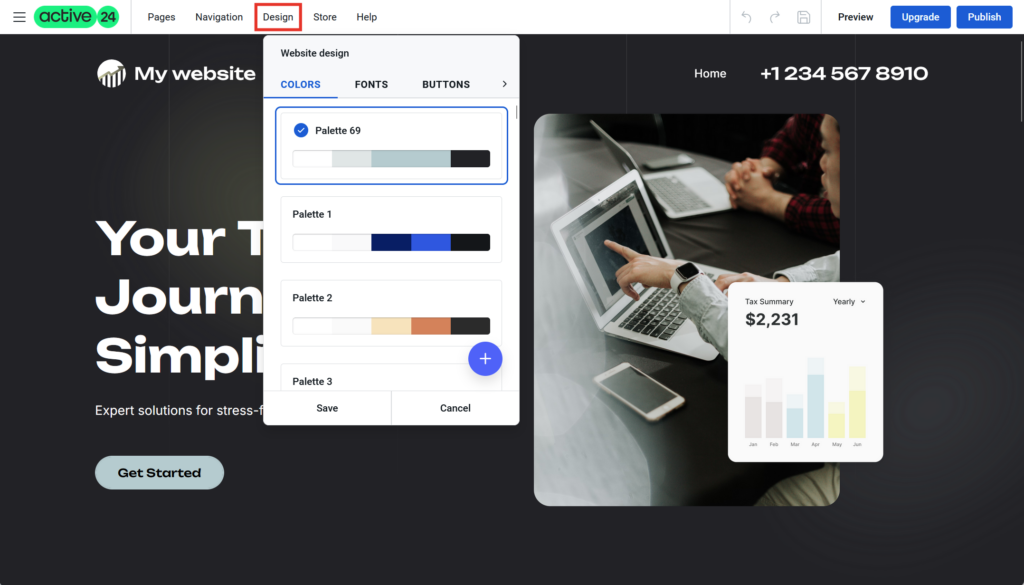
Website design
You can edit the overall design of the page via the Design tab in the top menu. Here you can adjust the font style, colors used on the page, buttons or completely change the template used.
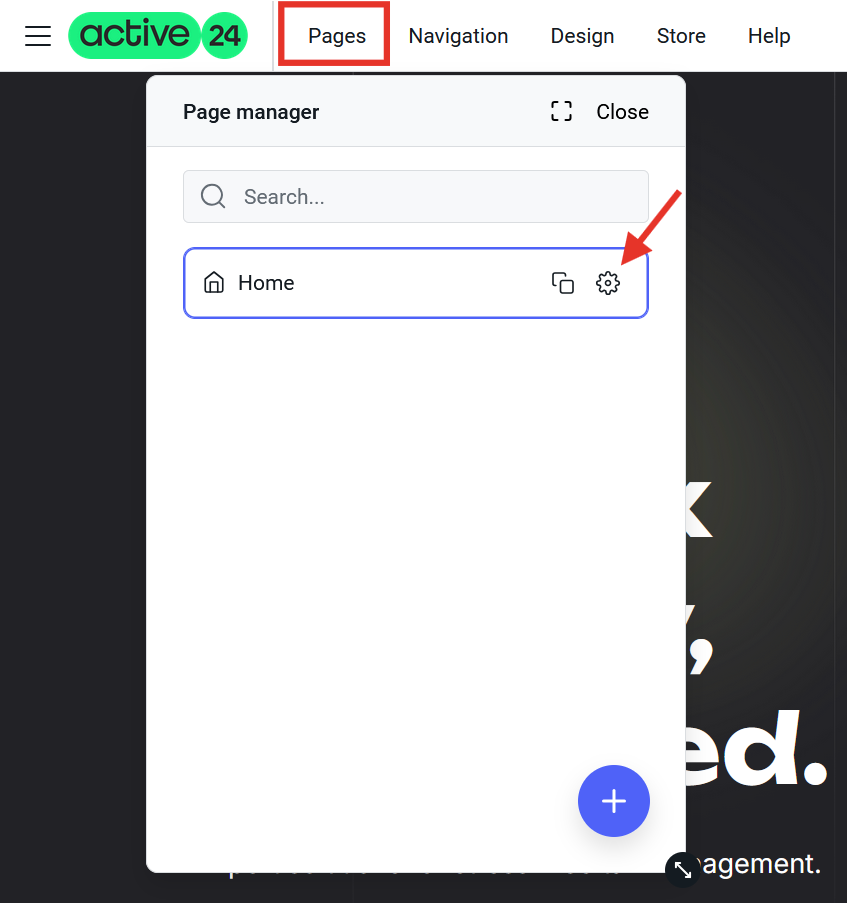
Page settings
For each page, you can edit their name, language, SEO keywords or even your own code (only in the Large version of the pages).
You can find the page settings in the Pages section and when you go to the page you will see the Settings (Gear) option (you need to hover over the page name to see it)
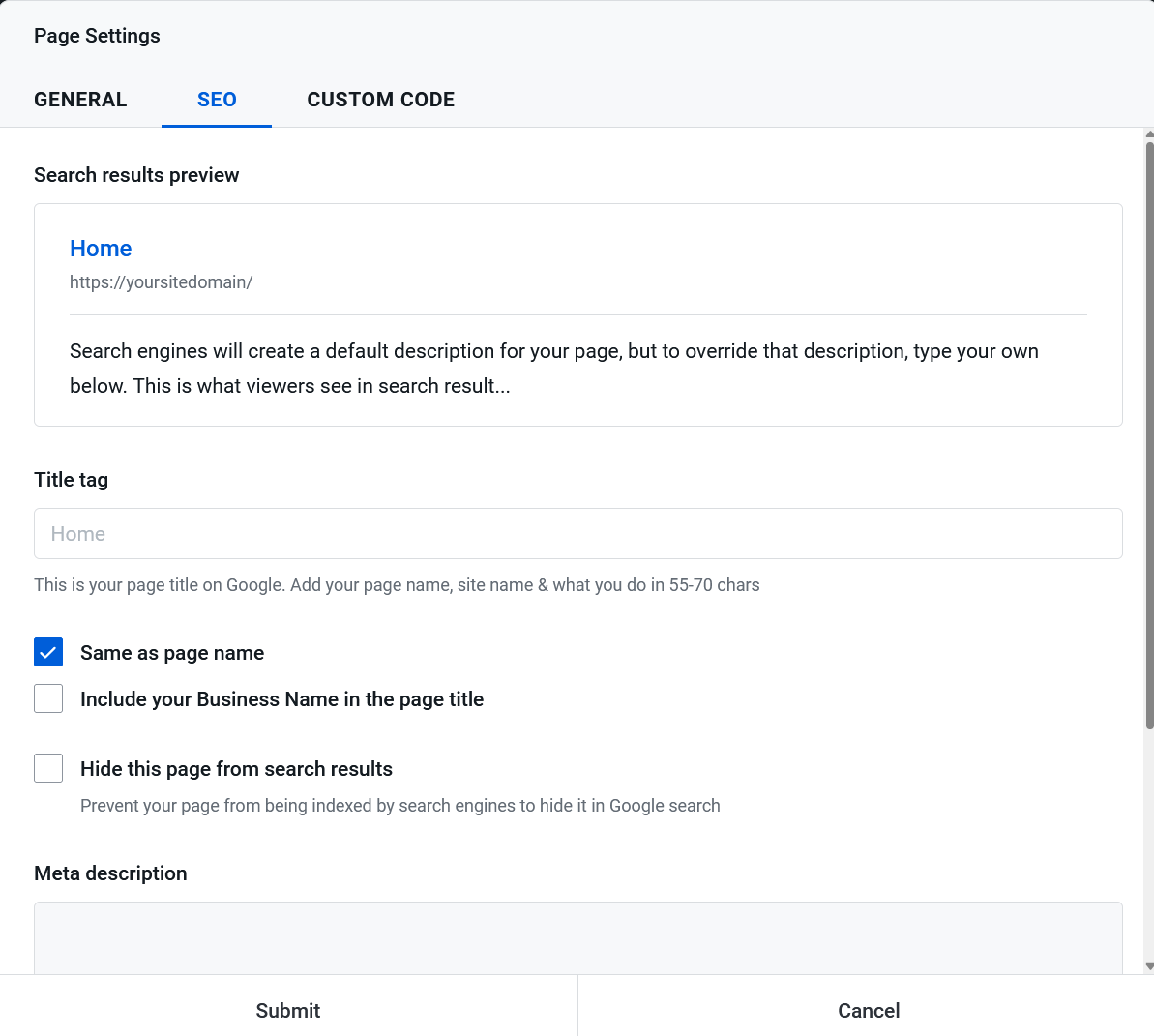
SEO settings
SEO settings can be found in the settings of each page. SEO is important to set up for the correct search of the page in search engines such as Google and Yahoo. For proper SEO settings, you need to fill in the Meta keywords, according to which search engines display results, and the Meta description, which then simply describes your page.
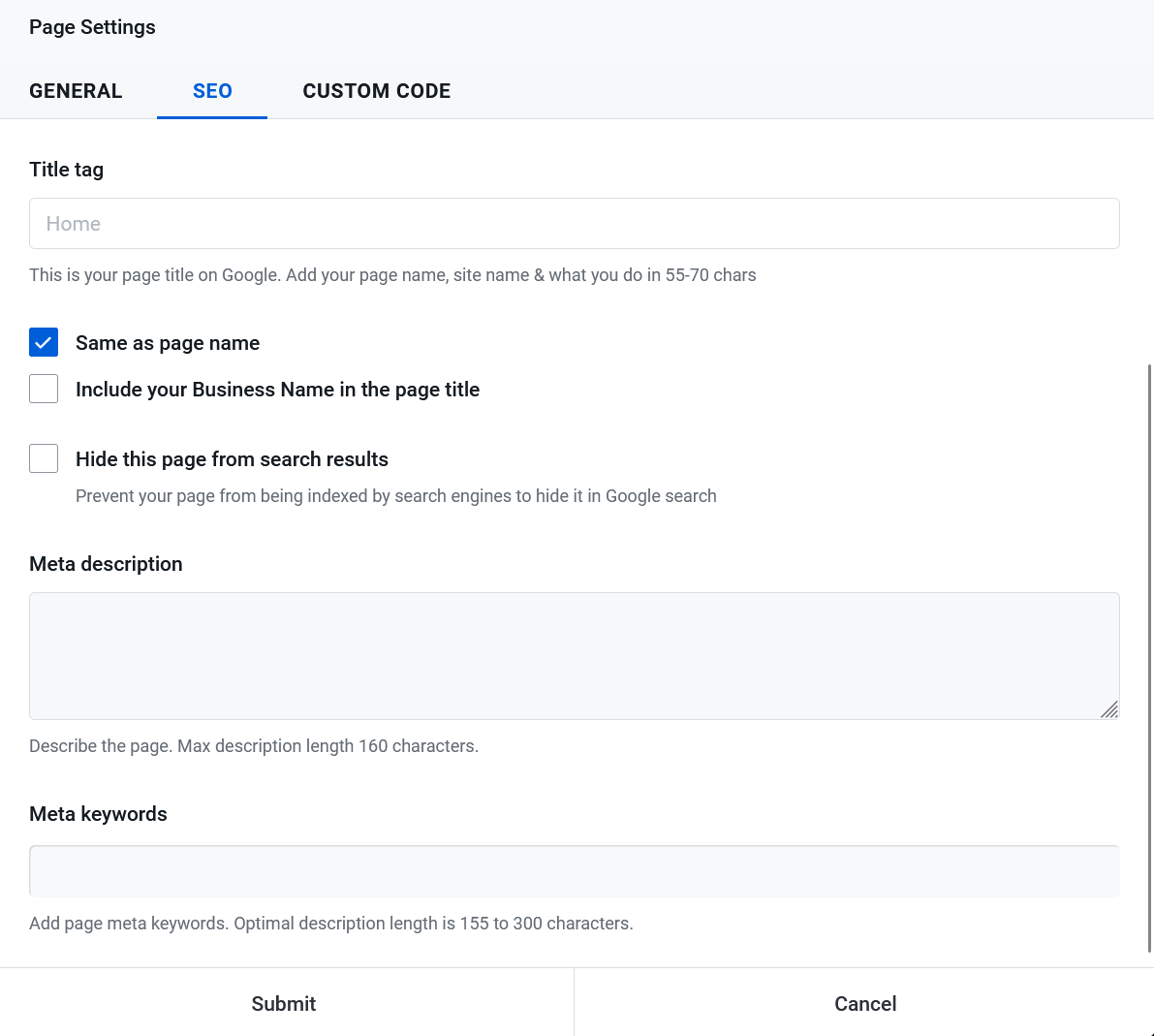
Tip – Image in SEO view
For the thumbnail image (preview image, e.g., on LinkedIn or Google), the first image on the page (preferably PNG) is always used. To ensure the correct image appears in your preview, make sure the correct image is set as the first one on the website
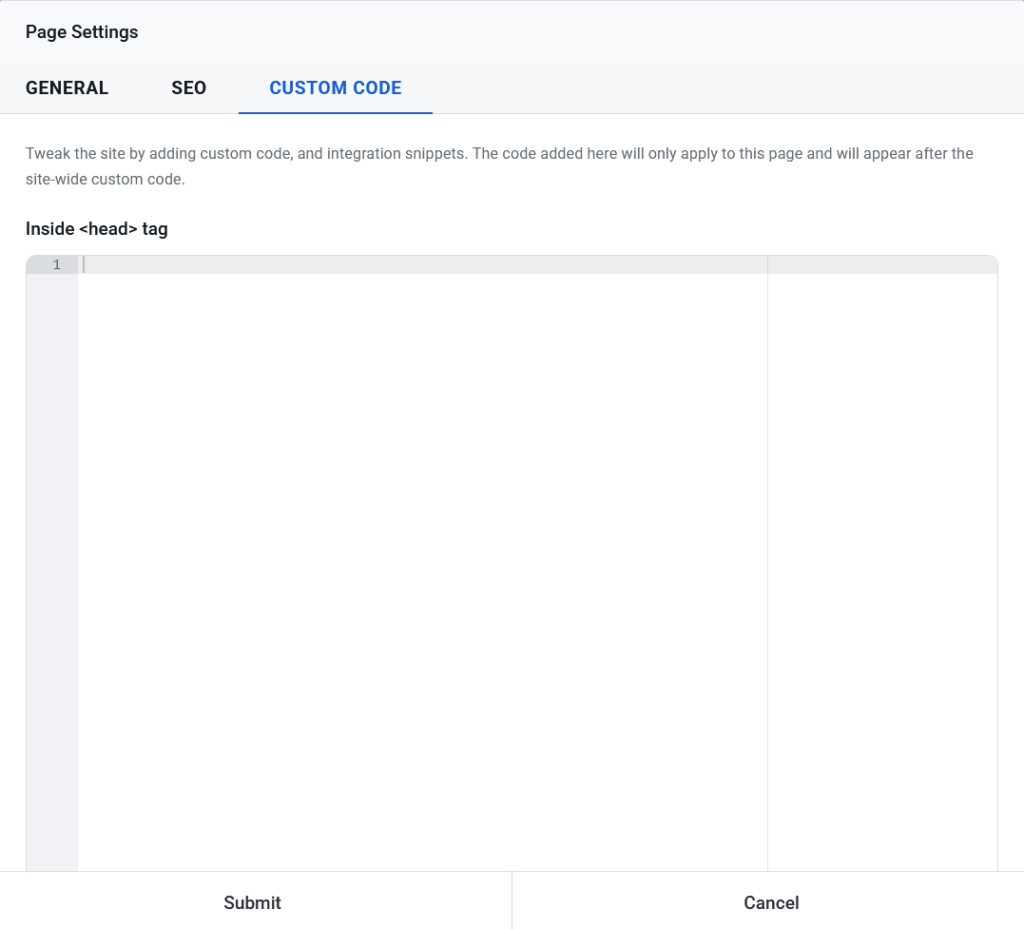
Custom code
If you need to edit a page directly in the code, or if you need to configure a third-party application through code on just one page, you can do so in the page settings under the Custom Code tab.
You can edit the code for the whole website in the settings – see this guide.