
If you are using Business Mail as part of the 60-day trial period and the service does not meet your needs, you can migrate your email mailboxes to a selected hosting package. If the trial period has already ended, please contact our customer support team, who will assist you with the migration.
During the migration, your Business Mail mailboxes will be automatically moved to the email service included with the selected hosting package. To start the migration, follow the steps below.
The migration will move all mailboxes in your Business Mail service. You cannot select only specific mailboxes. Once the migration is complete, the Business Mail service will be terminated, and the mailboxes will operate under your hosting package.
The following requirements must be met before the migration can take place:
- Business Mail and the destination hosting package must be registered under the same customer account. Migration between two different accounts is not possible.
- The same account must include an active hosting package assigned to the same domain used by the Business Mail mailboxes. The migration cannot move mailboxes to a different domain.
Hosting email does not support all the features available in Business Mail. Some data and settings will therefore not be transferred during the migration.
How will your email service change after the migration?
Once the migration is complete, the Business Mail service will be terminated, and all mailboxes under the selected domain will be moved to the hosting package. You will access your email through Roundcube webmail. Your email messages will remain available, but some additional Business Mail features, settings, and other data will not be transferred.
Your new hosting email service will include:
- Migrated mailboxes, including all stored messages
- The option to create an unlimited number of additional mailboxes
- Mailbox storage within the total storage capacity of your hosting package
- Roundcube webmail for managing emails, contacts, and calendars
The following Business Mail data will not be transferred:
- Contacts and calendar events unless you export them before the migration
- Documents created using Documents Online
- Scheduled video conferences and their recordings
- Notes
- Tasks
- TeamChat rooms and conversations
- Configured filters and message-processing rules
- Outlook Sync
- Labels assigned to emails
1. Export contacts and calendars from the Business Mail interface
If you have decided to migrate from Business Mail to hosted mail, the very first step should be to back up your contacts and calendars.
For each mailbox, you need to export from the Business Mail interface on Webmail and import it into the Roundcube interface when you are done.
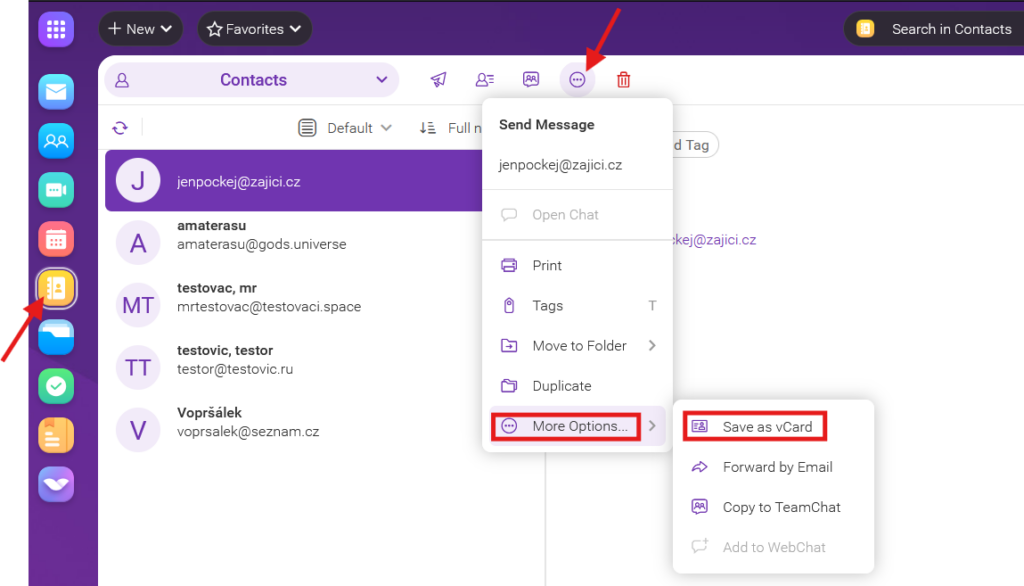
Export contacts
- Log in to your email account in the Business Mail interface from which you want to export contacts
- Click on the Contacts icon in the left menu
- Then click the 3 dots in top panel > More options… > Save as vCard
- Select the destination folder on your computer and confirm
- A file in .vcf format will be downloaded to your PC, which you can save.
Export calendar
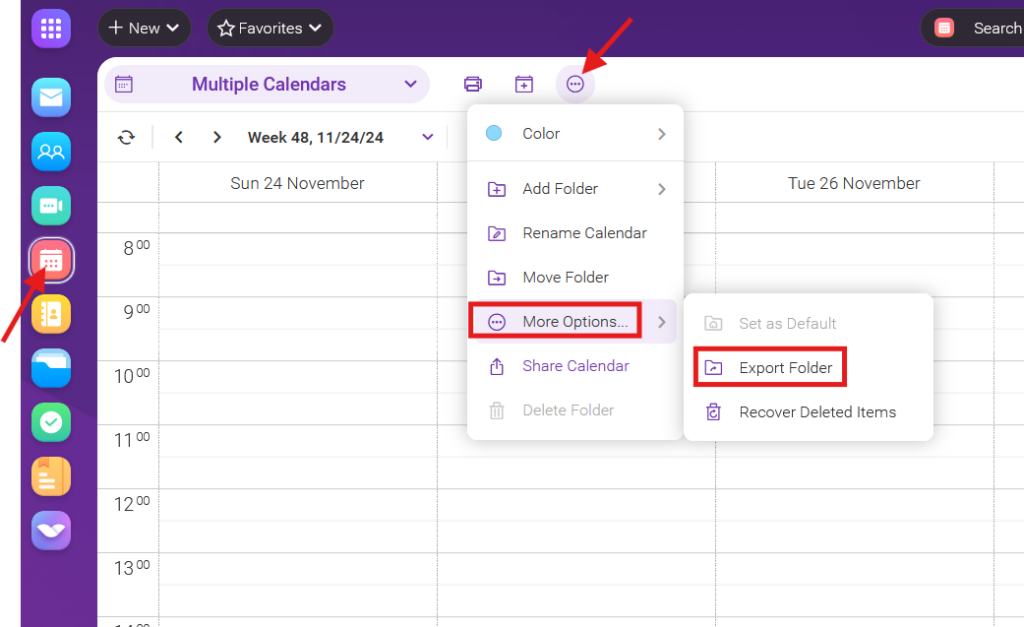
- Log in to your email account in the Business Mail interface from which you want to export contacts
- Click on the Calendar icon in the left menu
- Then select the calendar in Multiple Calendars
- Select 3 dots in top panel > More options… > Export Folder
- Select the destination folder on your computer and confirm
- You will download an .ics file to your PC and save it
2. Migration process
Once you have a hosting service under your account, a domain with Business Mail linked to that hosting, backed up contacts and calendars, you’re ready to migrate.
You don’t have to worry about emails that come in during the migration. You won’t lose any emails, everything is properly synchronized when you first log into the new service interface.
1. You can start the migration in our WebAdmin.
2. Open Business Mail and select Service Settings from the left menu
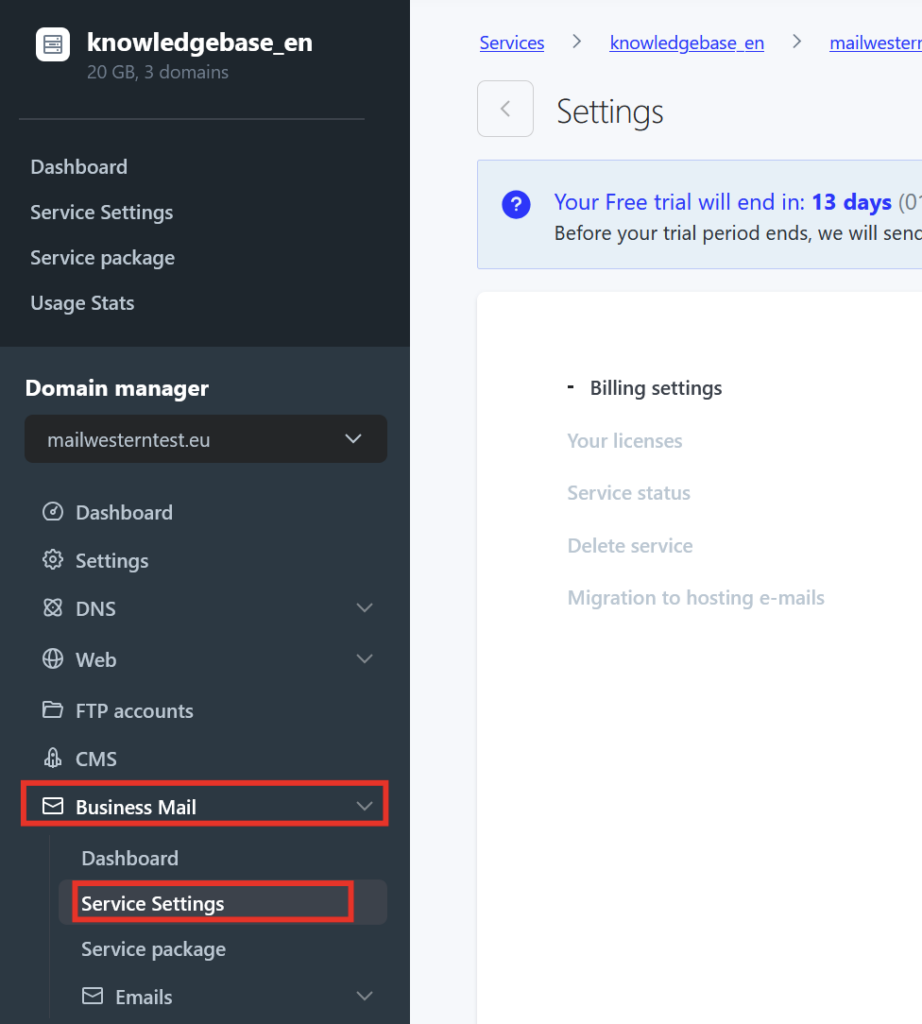
3. At the bottom of the screen you will find the “Migrate” button. When you click this button, you will be prompted to enter the domain of which email boxes to migrate as a security feature to start the migration.
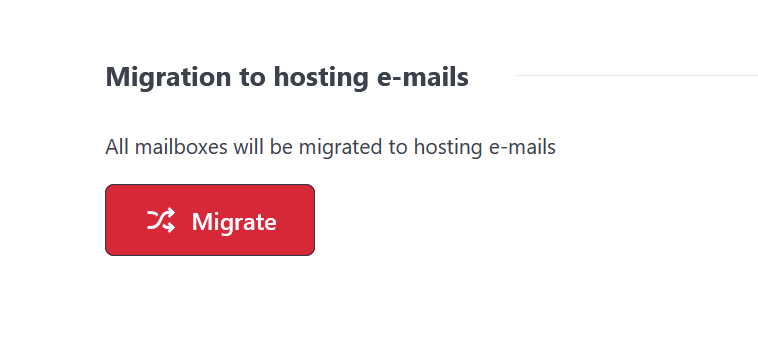
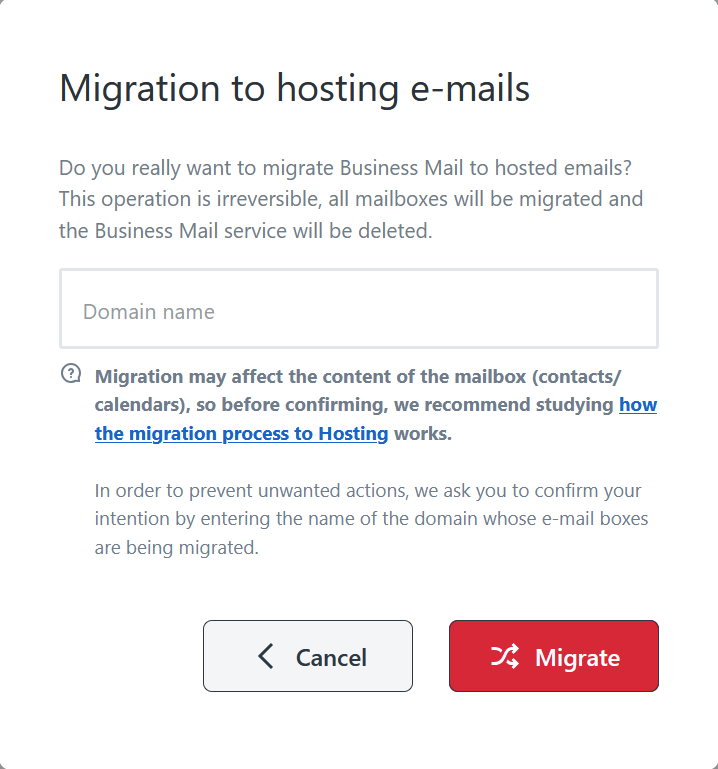
4. When you click Migrate, the automatic migration of mailboxes begins. When it is complete, you will receive an email notification confirming that the migration was successful.
The passwords for the email boxes remain unchanged. You will log in to the new interface with the same credentials as the standard WebMail login.
3. Import contacts and calendars into Roundcube
Import contacts
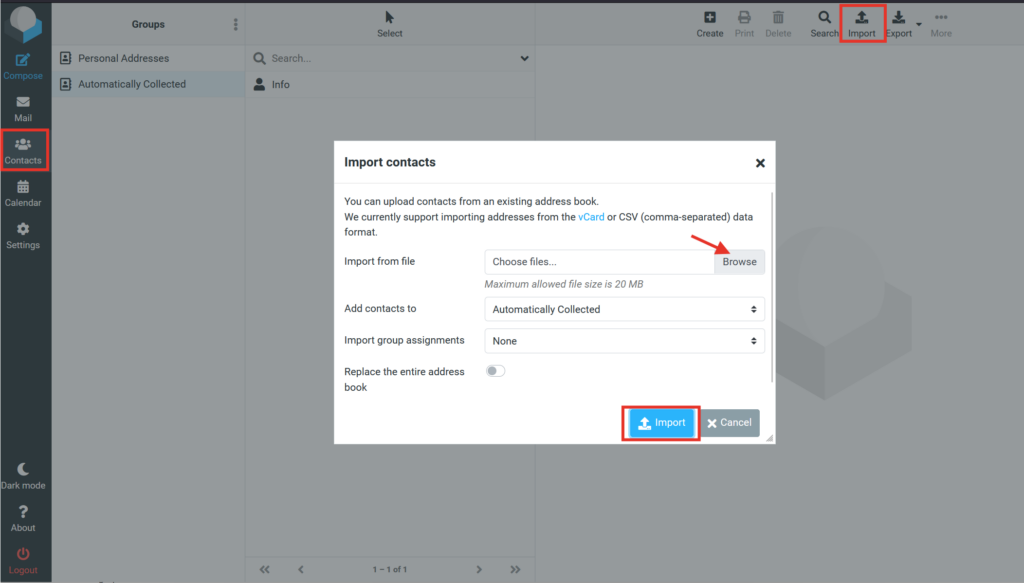
- Log in to the email account in the Roundcube interface via Webmail where you want to import your contacts
- Click on the Contacts button in the left menu
- In the top bar on the right, click the Import icon
- Select the .vcf file you want to import from your computer and confirm
Your contacts have been imported and you will see them in the Contacts folder
Import calendar
- Log in to the email account in the Roundcube interface via Webmail where you want to import your contacts
- If you have exported multiple calendars, you need to create them in the new interface first:
- Click on the Calendars button in the left menu
- Click the Add Calendar icon in the top menu and create as many calendars as you have exported
- Click on the Calendars button in the left menu
- In the top bar on the right, click the Import arrow
- Select the .ics file you want to import from your computer and confirm

What you can configure in Roundcube after the migration
Once the migration is complete, you can use your mailbox normally through the Roundcube interface. The following guides will help you customise the interface and configure additional features:
- Roundcube settings – configure the basic options and behaviour of your mailbox.
- Changing the appearance in Roundcube – customise the appearance and layout of the webmail interface.
- Directory mapping in Roundcube – assign the correct folders for sent messages, drafts, spam, and deleted messages.
- Editing the address book in Roundcube – create and manage contacts in your address book.
- Email signature in Roundcube – create and configure a signature for outgoing messages.
- Email filters – automatically sort and process incoming messages according to your own rules.
These options allow you to customise Roundcube according to your needs and manage your email communication conveniently in one place.