
If you require to import a database with that contains more than 96 MB of data, you will reach a maximum upload limit of the imported file in the phpMyAdmin (guide to import smaller databases can be found here). In this guide we will show you how to bypass this limitation either for Windows or Linux user.
Windows
You will need MySQL client where you will connect to the database server and trough which you will make the import itself. For simple tasks you can get freeware program HeidiSQL, which you can download here.
After successfull installation you need to set up connection with the database server.
- All necessary detail can be found in the WebAdmin in Database section of your hosting.
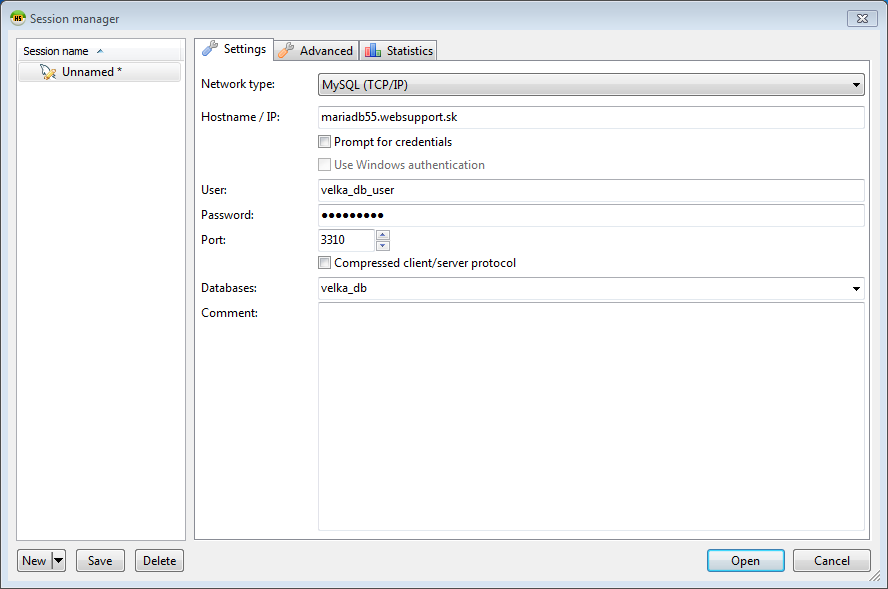
- In our case we will connect to the database velka_db with velka_db_user that uses version MariaDB 5.5 (and therefore we use port 3310).
- After you run HeidiSQL select New → Session in root folder, enter DB connection details and select Open:
In the open window you can see your database and its tables, if some exist:

- Select File → Load SQL File or use keyboard shortcut Ctrl + O a and select SQL file you want to import to your database.
- In the window that will appear after choosing the file select Run file(s) directly and watch the progress of the import to our servers.
Debian/Ubuntu Linux
In a case of Linux you can install and run HeidiSQL in the Wine program and follow the guide for Windows. More effective way is to use console client straight from MySQL that can be installed via terminal with a command:
sudo apt-get install mysql-client-5.5
Syntax for the import is following:
mysql -h adresa.db.servera -P port -p -u pouzivatel_db nazov_db < /cesta/ku/sql/suboru.sql
In our case we would use command in this form:
mysql -h mariadb55.websupport.sk -P 3310 -p -u velka_db_uservelka_db < dbzaloha.sql
After entering a password the import will begin an any errors will be listed in the console. After the import is complete you can check the database content via console or via phpMyAdmin.