
Cache memory (or simply cache) is a temporary memory that works between the user and server. When the user is searching websites the server will check whether the copy of the website is stored in the cache already. To save some time server tries to load the stored version of the website. In this guide we will describe how to work with the cache memory on our hosting.
Opcache
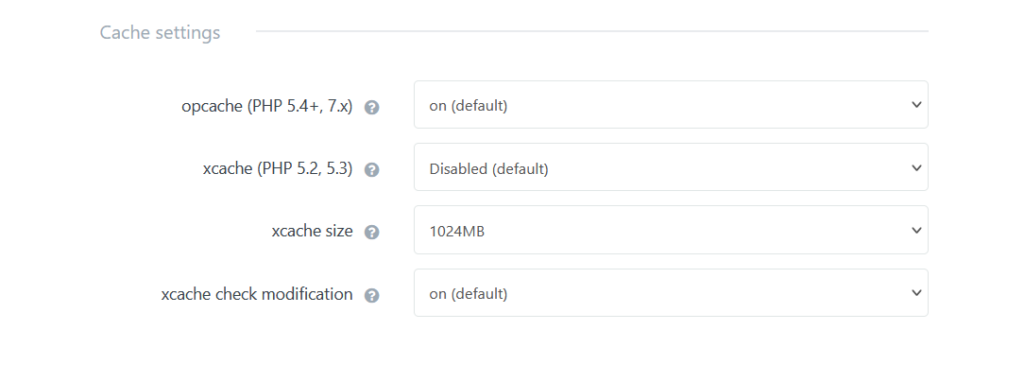
It serves to speed up the loading process of your web page by temporary storing PHP scripts. If this option is enabled, result of calling the script for the first time will store its results data and this stored data will be used again every time this script is running before it expires. This feature is available for PHP version 5.4 or newer. More information about opcache can be found here.
Xcache
Xcache works on the same principle as Opcache. It speeds up the loading process of your web page. If it is enabled the result of calling the script is stored and used from the stored memory until it expires. The difference between Xcache and Opcache is that Xcache is available for PHP version 5.3 and older.
Xcache size
Size of the xcache determines how much memory can Xcache use. If the xcache size is set to 0MB the xcache is disabled.
Xcache change controls
This function enables or disables a possible change in the files after they have been stored in the memory. If the control is enabled, files will be cached anew if there has been a change in them since the last caching. If it is disabled the first stored version of the file is used instead until it expires. That can help with the performance regarding I/O operations.
In the development interface it is helpful to keep controls enabled. That allows you to edit the code immediately – alternatively it is necessary to read the cache to display file changes.
How to set up cache
- Log in to Webadmin
- Select your domain from the list of Services
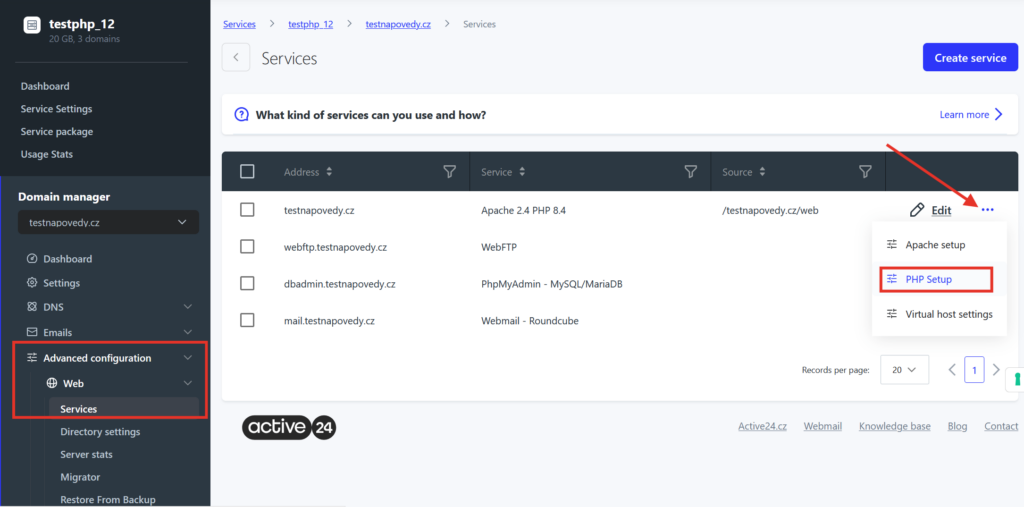
- Click on the Advanced configuration > Web section in the left menu
- Select the three dots next to the service you wish to edit
- Select PHP setup
6. Go to Cache settings
After you edit your setting press Save at the bottom