
- Open Outlook and select File at the top left.
- Select the account you want to change from the drop-down list under Account information.
- Select Account Settings.

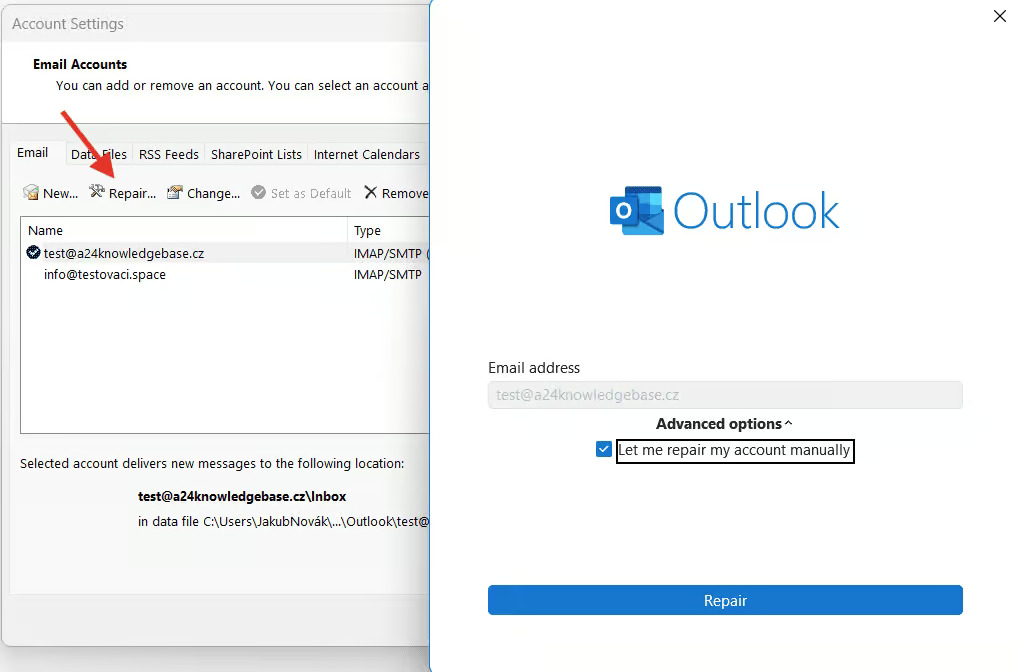
Some versions of Outlook include server configuration under Account Settings, where you can simply select the account and click Repair. Then choose Repair account manually
We recommend using the option via Account Settings → Repair only if the standard method through the Server Settings section does not work for you.
If you are unable to access the server settings through either section, please contact Microsoft Support for further assistance.
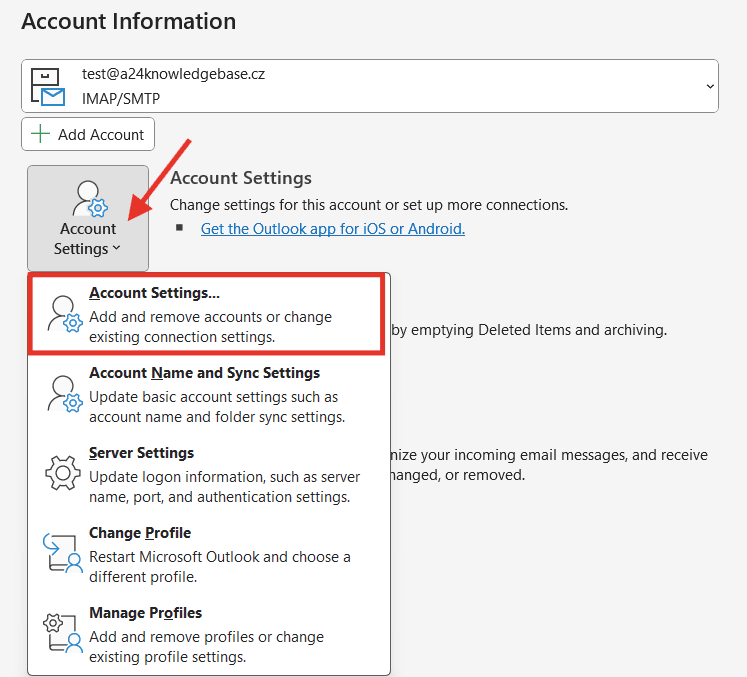
4. Select Server Settings, which allows you to change your login information, including password, server name, port, and authentication settings.

5. Select Incoming mail or Outgoing mail to change various server settings. Here you can also update your email password (after changing it in Webadmin).
The server settings are as follows:
Incoming mail
Server: imap.websupport.cz (or pop3.websupport.cz for POP3)
Port: 993 (or 995 for POP3)
Encryption: SSL/TLS
Outgoing mail
Server: smtp.websupport.cz
Port: 465
Encryption: SSL/TLS
6. After updating the settings, select Next > Done.
For a visual help, you can watch our video, where in the second part we describe how to change the settings. Video is in Czech, but you can select automaticaly translated subtitles