
To work via FTP a special piece of software (FTP client) is required. You can have it installed on your PC or use webFTP. FTP client will allow you to perform operation with the files and directories such as copy, delete, rename, upload of the data to the server etc. In this guide we will describe the process of connection to the mostly used clients.
FileZilla
Filezilla is a FTP client developed by Mozilla Foundation, it is free to use and one of the most recommended FTP clients due to its easy to use interface. As a first step you need to download this client via link bellow and install it.
After the program is installed you can log in to the FTP
- Check your login credentials in the WebAdmin
- Start the FileZilla
- Enter the details from the administration to the quick connection line

Host – we recommend to use one of the IP addresses displayed in the FTP login details section of the WebAdmin, that works no matter where the domain is pointing to. If you are sure your domain points to the hosting, enter the domain without www.
Username – username to FTP. Listed in the login details section.
Password – corresponding password to your FTP account
Port – optional – you can use port 21
After you select the “Quickconnect” button and you filled the right details a certificate confirmation will appear. After confirming by selecting OK, the webhosting content will appear and you will see the common structure of directories logs, web and sub. To the web directory you can upload the files for your main website, to the sub directory you can upload files for the subdomains. Logs directory is a system directory and is used for saving logs for your domain.
Well done! Your login was successful.
Total Commander
Total Commander is one of the most popular commercial FTP clients at the moment and it is for Microsoft Windows operating system. Before the connection download it via the link bellow and install it.
After the program is installed you can log in to the FTP
- Check your login credentials in the WebAdmin
- Select Net in the top menu and then select FTP Connect…
- Select New connection…
- Enter any name of the session you want to login

Host – we recommend to use one of the IP addresses displayed in the FTP login details section of the WebAdmin, that works no matter where the domain is pointing to. If you are sure your domain points to the hosting, enter the domain without www.
Username – username to FTP. Listed in the login details section.
Password – corresponding password to your FTP account
You can skip other details or leave the default. After confirming and closing the dialog window select the FTP account name from the list and select Connect.
Well done! Your login was successful.
WebFTP
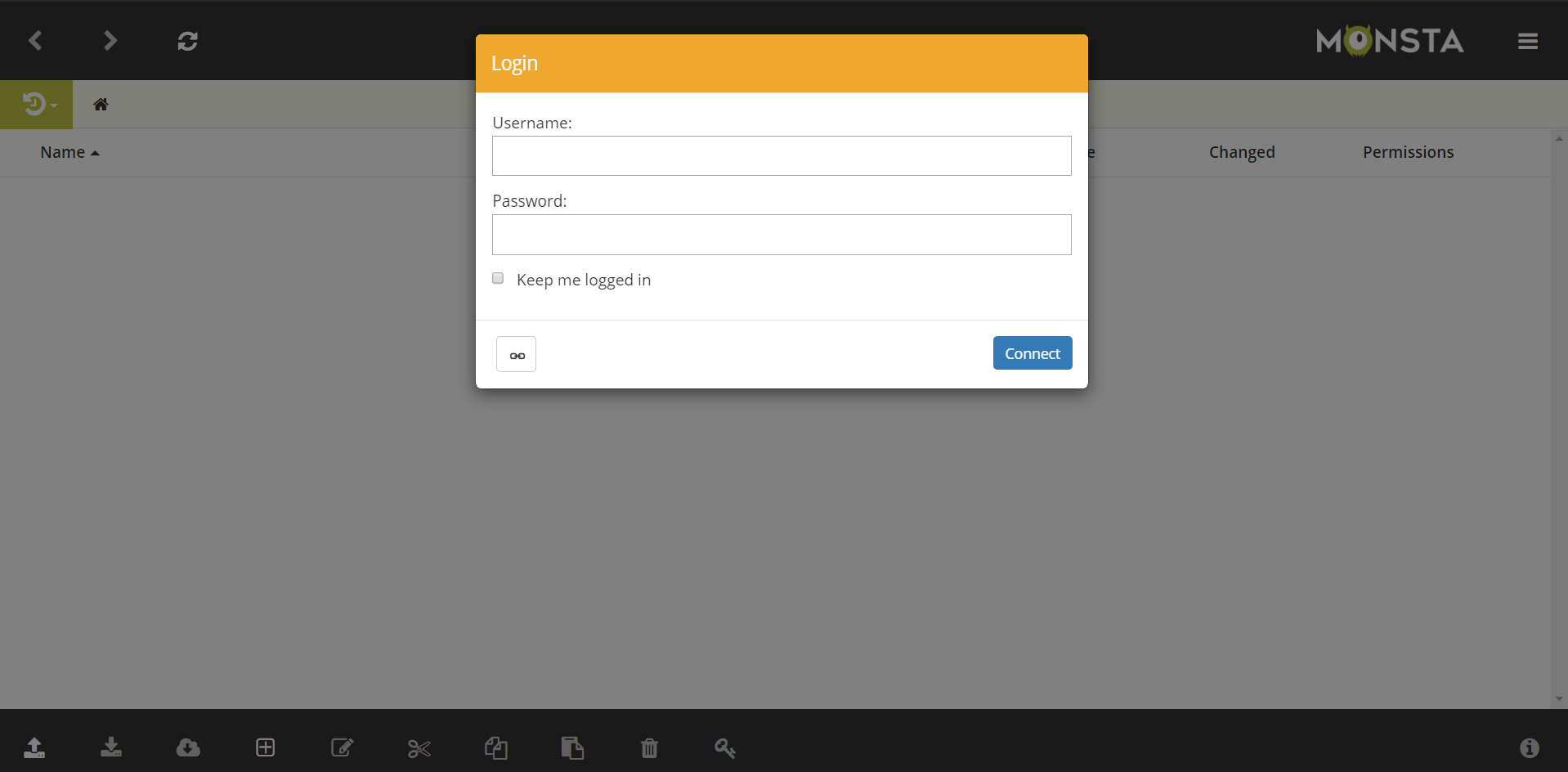
On our servers you can also connect to the hosting with exception to the aforementioned clients via the WebFTP interface. WebFTP is located at https://ftp.active24.cz/. More about the FTP in our guide.
You can find login details in the WebAdmin. You can locate there the prefilled links as well. With them you can login more easily by only filling in a password.
WinSCP
WinSCP is SFTP client and FTP client with open source code for Windows operating system. Its main feature is to connect via secured connection SFTP. To connect follow this guide.