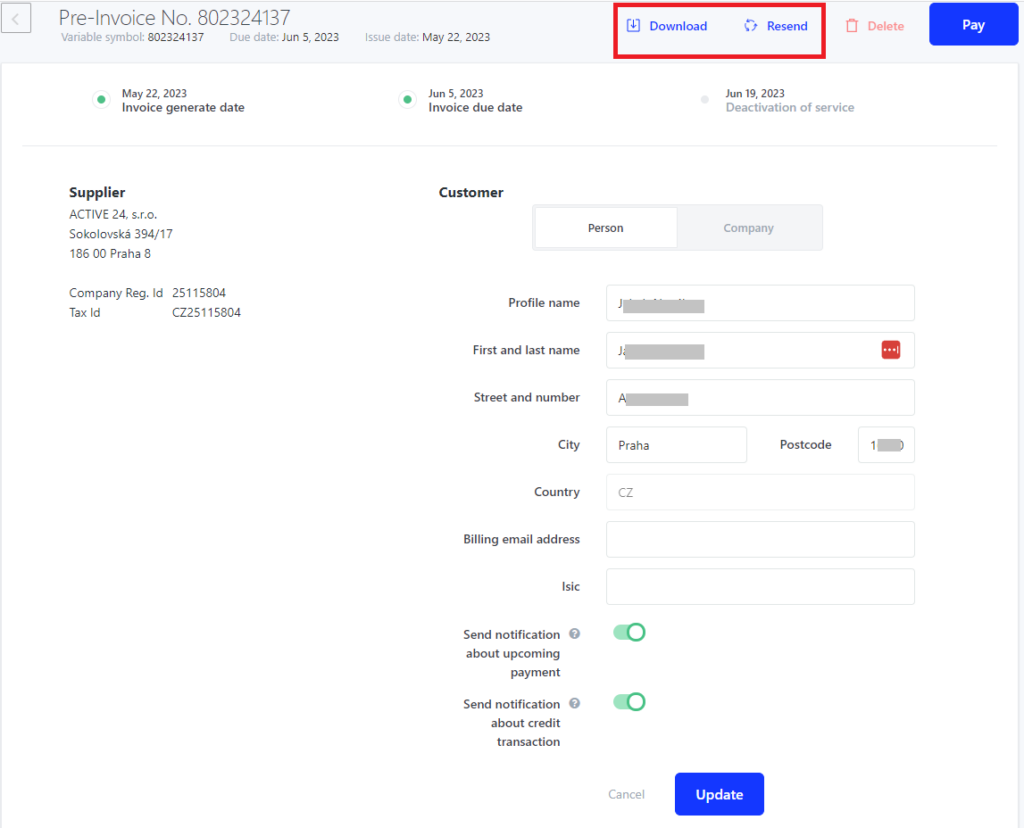
If you need to change invoicing detail on already created proforma invoice/ invoice, we will show you how in this guide.
Changing proforma invoice details in the WebAdmin
- Log in to the WebAdmin
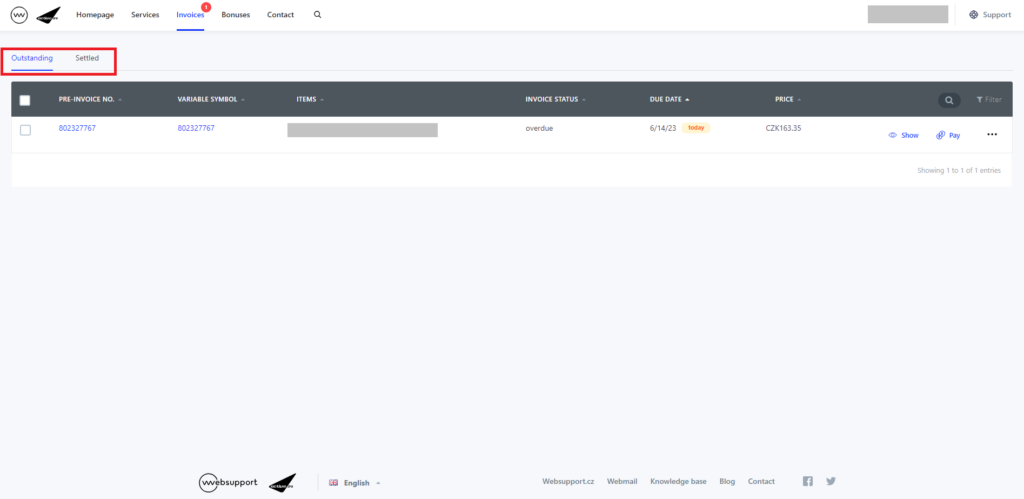
- Select Invoices section
- Proforma invoices are located in “Not paid” while Invoices are in the “Paid” section
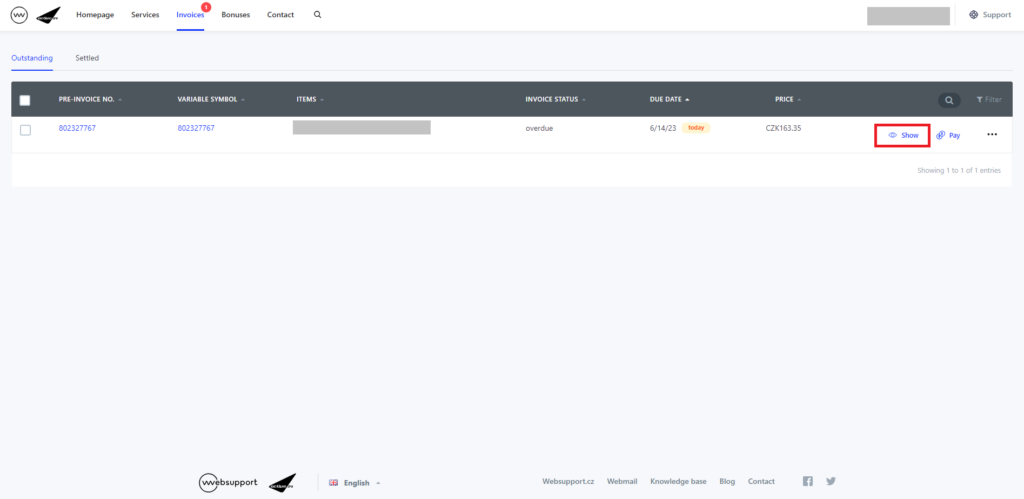
4. Select Display
5. Select invoicing profile (distinguished by the blue colour)
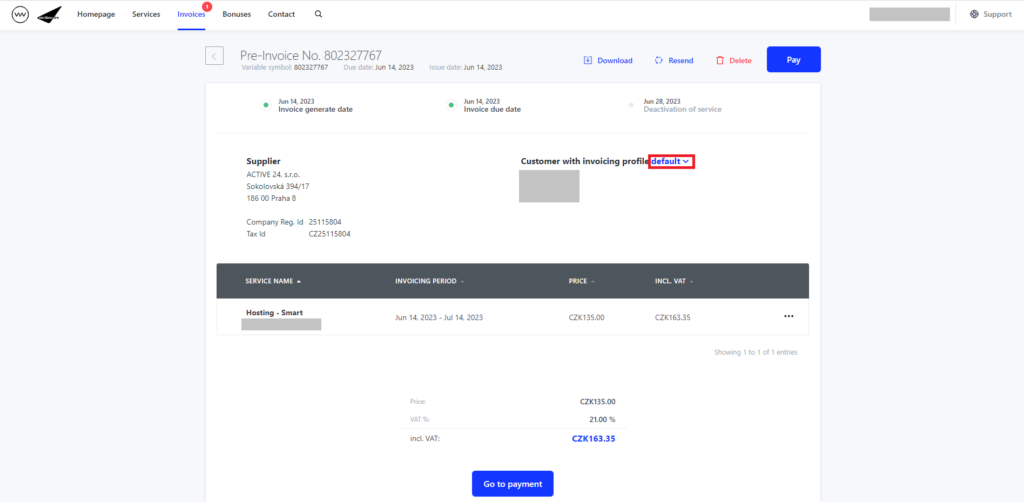
6. To edit invoicing profile select “pencil” symbol next to the profile
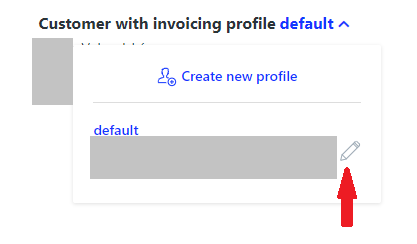
7. Finish editing by clicking on Edit profile
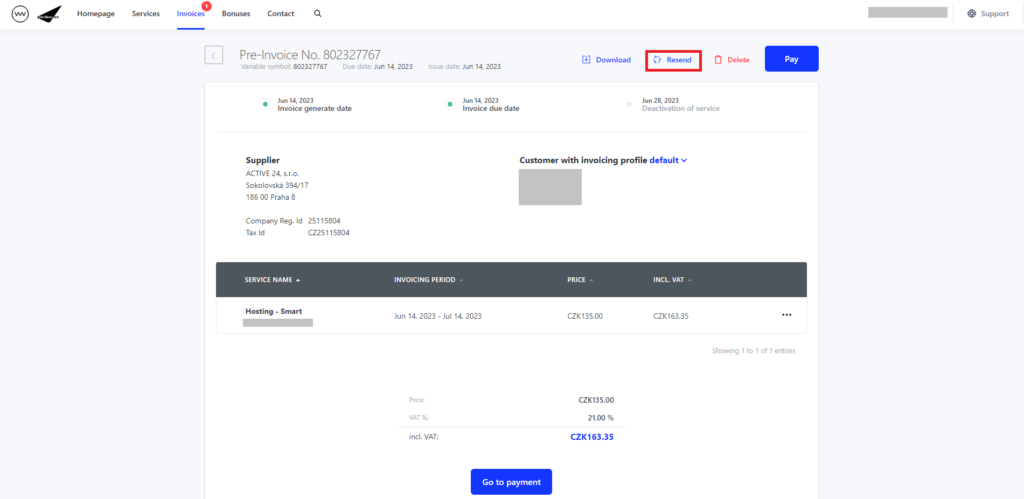
8. Edited (proforma) invoice can be resend to your e-mail by selecting Resend
Changing billing details through sent e-mail with the invoice for payment
You can change billing details aswell through the e-mail that was sent to you. On the invoice for payment you can click on “change in this link” in the yellow field.
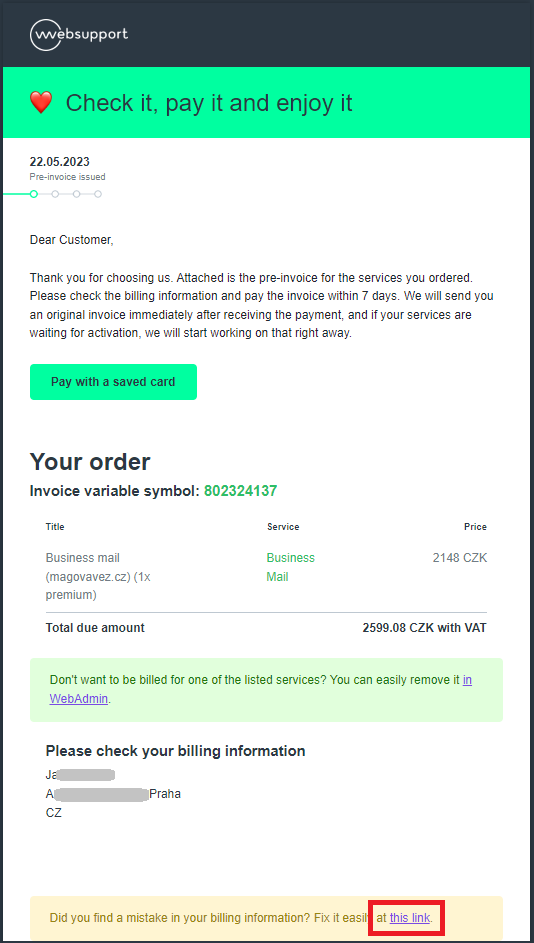
After clicking on “this link, you will then be forwarded to WebAdmin where it is possible to change said details even without log-in. Corrected invoice will then be able to be downloaded or resent, or you can go directly to the payment.