
Management of proforma invoices, invoices and credit notes is located in the WebAdmin. You can send the invoices to a different e-mail, change invoicing details, separate some services to a different proforma invoice or merger multiple proforma invoices to one.
Invoice management
After the login to the WebAdmin, under the Invoices section you can find the options to see your proforma invoices and invoices, edit them, resend them etc. They are divided into 3 tabs – not all tabs may be visible if there are no items in that tab.
Proforma invoices
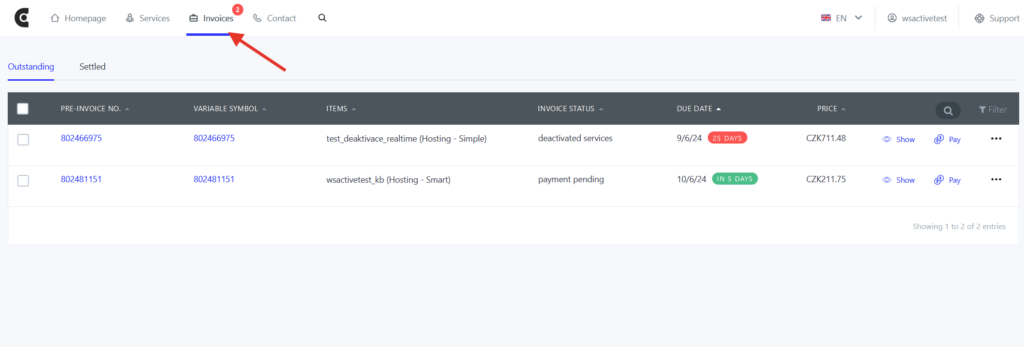
First tab contains all Outstanding = unpaid pre-invoices. Here you can make various changes on the proforma invoices.
- By selecting Show you can open the complete proforma invoice.
- Option to Pay will redirect your to payment of the proforma invoice.
- Download PDF will download the document.
- Selecting Resend will allow you to send the document to any e-mail you like.
- Option Split allows you to move selected items to a separate proforma invoice.
- If you do not want to extend the services your can select Delete
Invoices
Second tab consists of final Settled invoices – a tax document, and you can find following options.
- Select Display to open and display the invoice.
- Download PDF will download the document.
- Selecting Resend will allow you to send the document to any e-mail you like.
Credit notes

If you have canceled any service before expiring and you have a credit note for it, you can find this document in the last table. In this table there available options to Display, Download PDF, Resend and Credit note invoice.
Resend invoices
In a case you have paid the service in due time and you do not have the invoice, you should check the contact e-mail.
We send invoices right after the payment is paired with the service on a contact e-mail of your account. If you have a defined invoicing e-mail, then it is sent there. Invoices are found anytime in the WebAdmin interface under the Invoices section and they are always available for resend on a specified e-mail or for download.
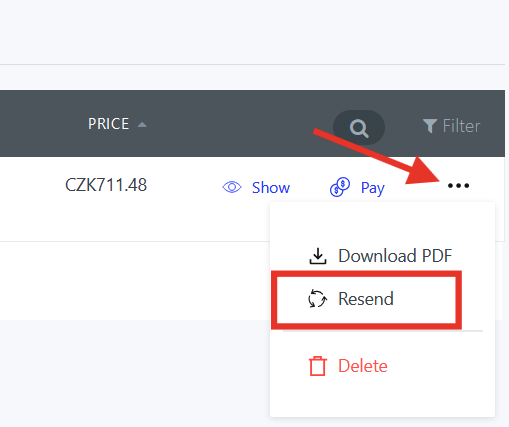
- In the section Invoices select three dots on the right next to the invoice
- Select Resend option
Merging proforma invoices
Payment for the hosting of multiple services can be made easier with merging invoices for each service together.
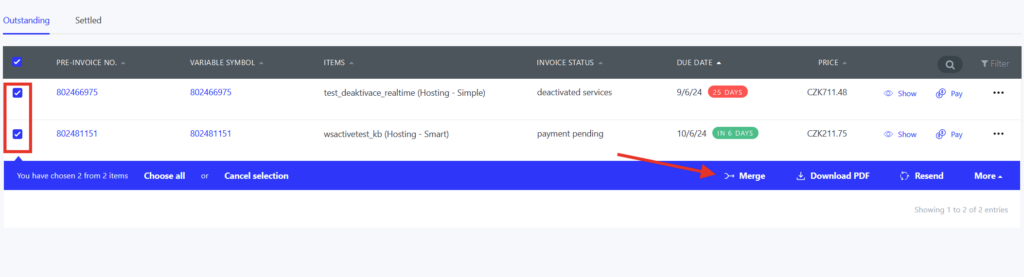
- Log in to the WebAdmin
- Open Invoices section
- Select invoices
- Select Merge and confirm
Splitting proforma invoices
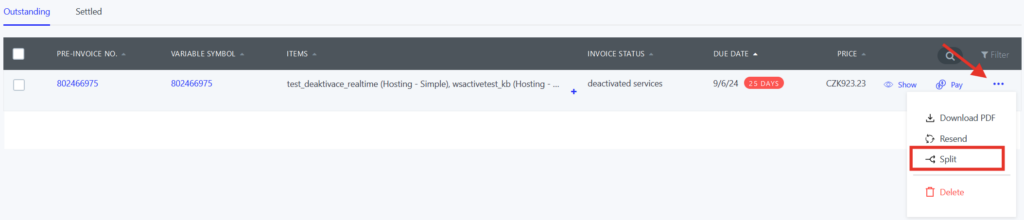
If you need to send invoice for specific service to someone else, select the 3 dots next to the proforma invoice and then select Split. Then you can manage each invoice separately.
Change of period
To change the period on the proforma invoice select Change.
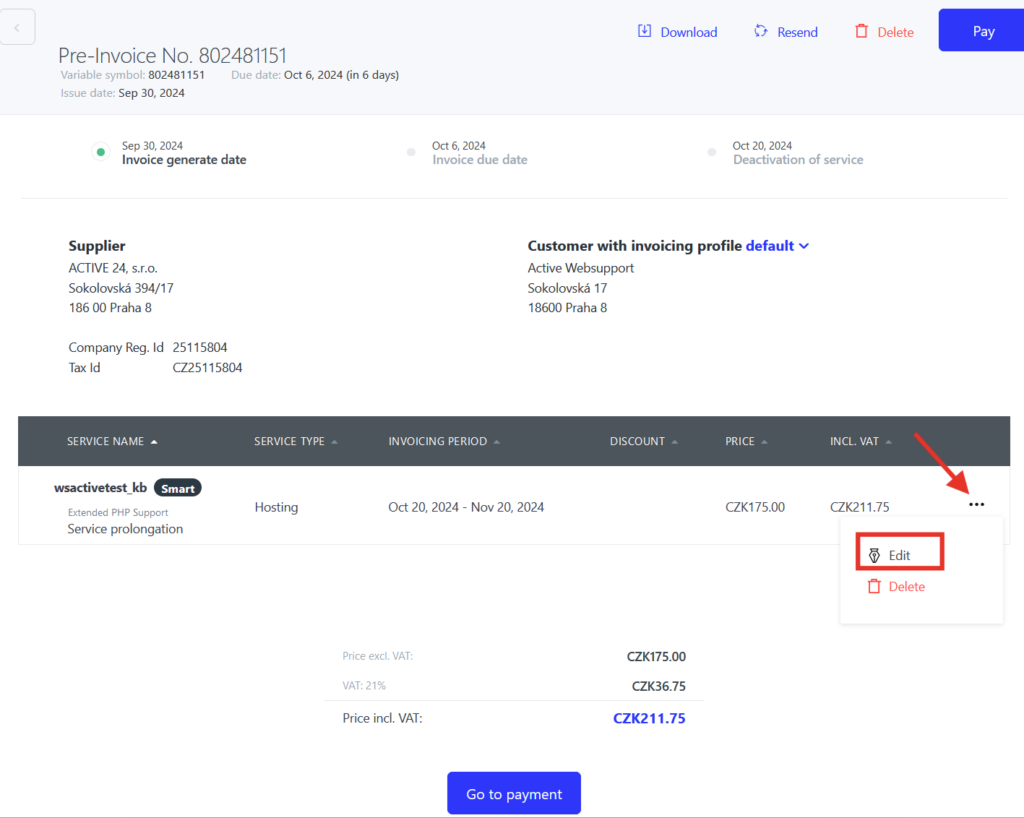
Select the desired period (different services may have access to different invoicing periods) and save to confirm. The amount of payment will adjust itself automatically, variable symbol will remain the same.
