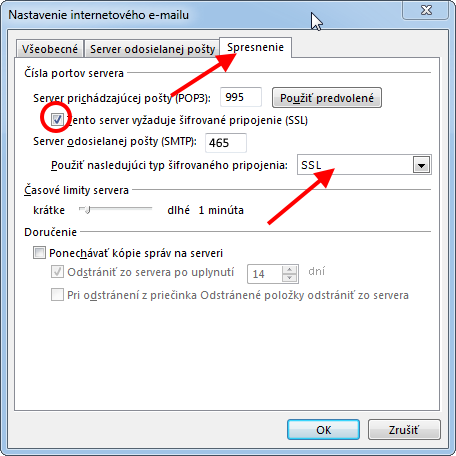
Manual settings
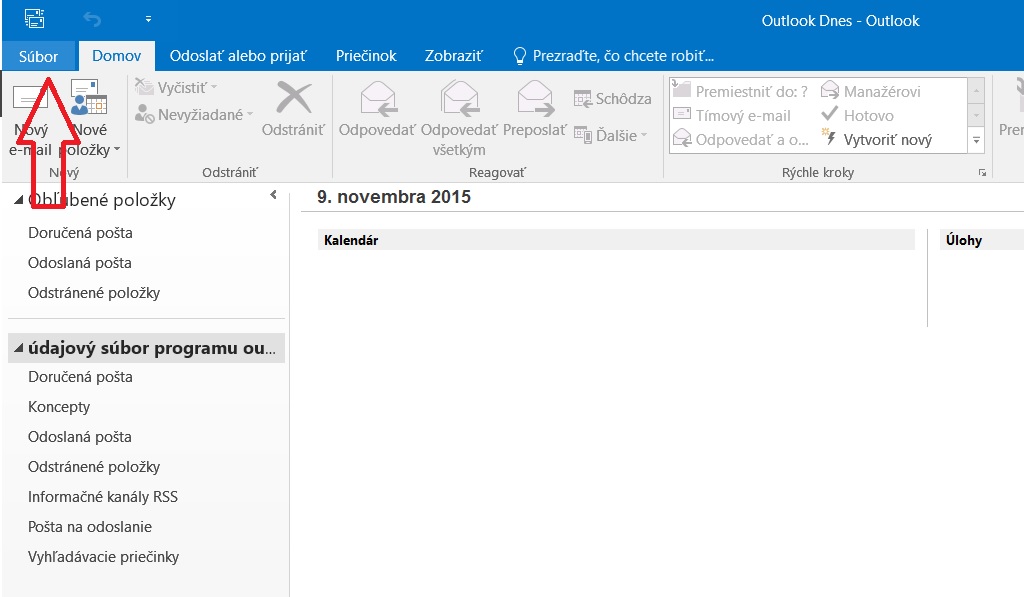
1. Open your mail client Outlook 2016 and select File on the top left
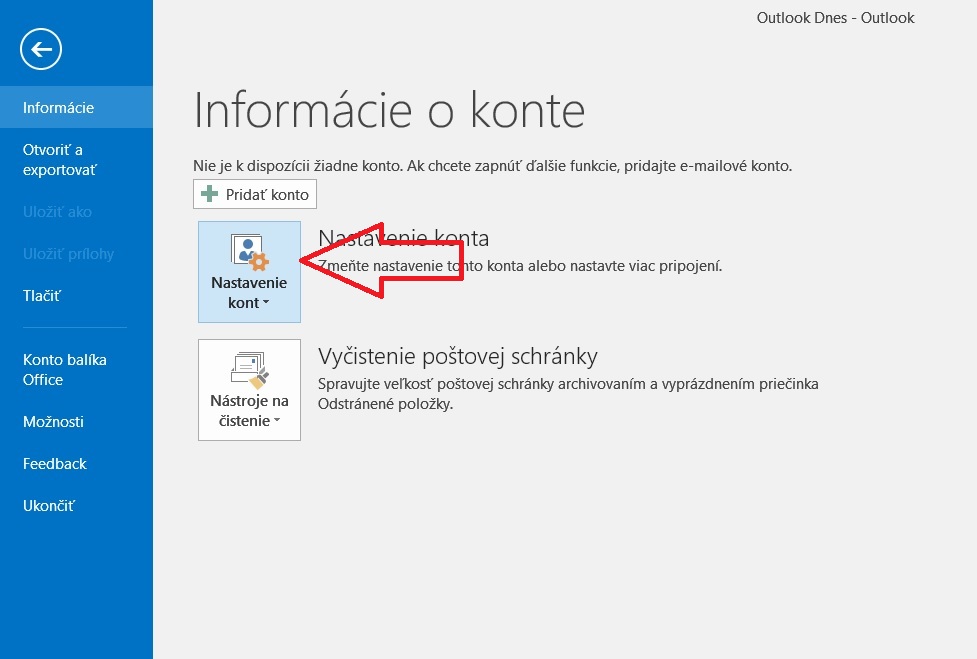
2. Select Account settings
3. On the next screen select New
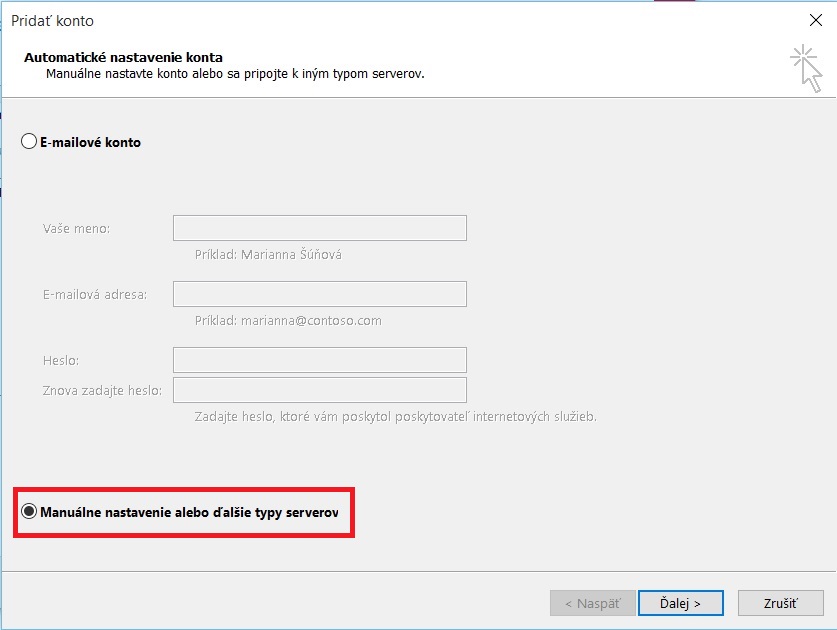
4. Select the checkbox Manually configure server and then press Next.
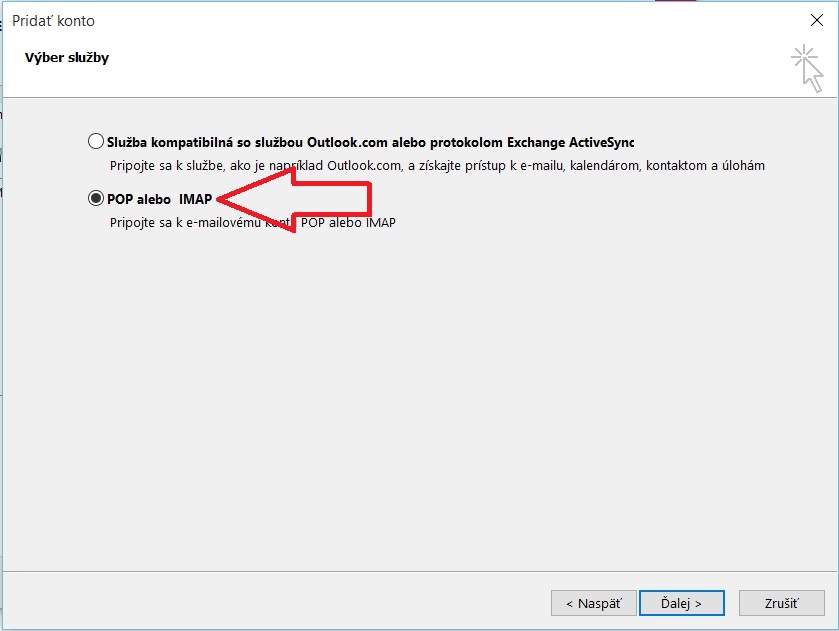
5. Select POP or IMAP account
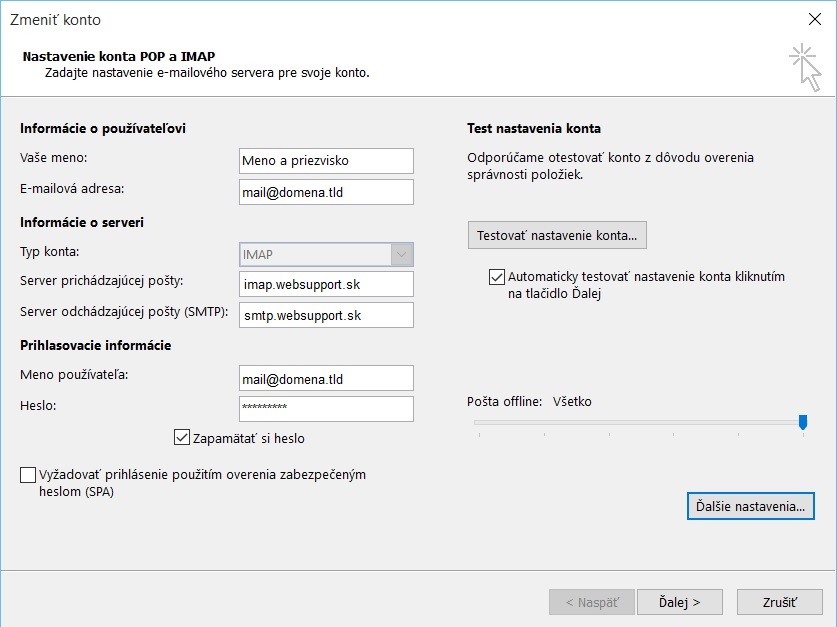
6. Enter your details:
Your name – which will be shown to the recipient
Account type – POP3 or IMAP (You can find more information about protocols in our guide)
Incoming mail server:
IMAP
imap.websupport.cz
POP3
pop3.websupport.cz
Outgoing mail server:
SMTP
smtp.websupport.cz
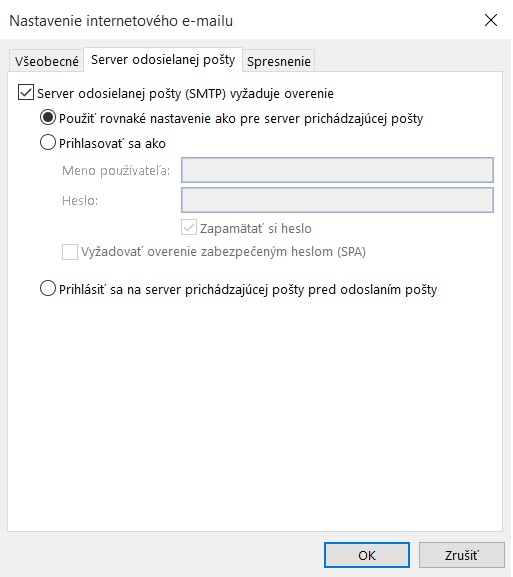
7. Edit the settings in “More settings … “. On the Outgoing server tab select My outgoing server (SMTP) requires authentication.
8. Edit ports in Advanced tab.
POP3
Use port 995.
IMAP
Use port 993.
SMTP
Use port 465.