
For customers who want to have theirs details more secured we prepared an option to activate two factor authentication. Two factor authentication will protect your account in a case that a potential attacker has gained knowledge of your login credentials. After activating this feature you will log in to your account with a username, password and one-time password that will be generated by an application (authenticator) or by authenticating via biometric / hardware key, email or SMS.
Activating two factor authentication
- Log in to the WebAdmin
- In the top right corner select your Username
- In the drop down menu select Security and login
- Activate two factor authentication feature

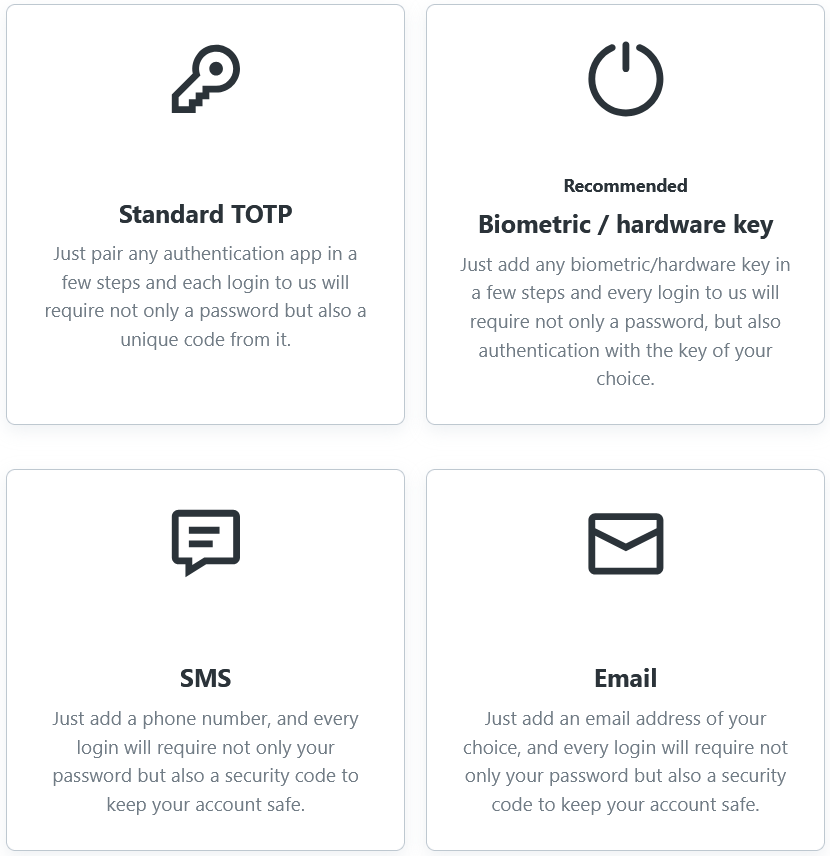
You have a total of 4 options to choose from:
Standard TOTP – one-time password entered using an authorization application such as (Google or Microsoft Authenticator, Authy, etc.)
Biometric/hardware key – the ability to set up login, e.g. via fingerprint or face ID or set up a hardware key for login
SMS – sending a one-time code via SMS
Email – sending a one-time code via email
If you select the TOTP (Time-based One-Time Password) option, please save your account backup codes securely in case you lose your device.
Lost access to authentication codes
When you first set up two-factor authentication, the system will generate Backup Codes for you, which you can use to access your administration. You can use any of the backup codes once instead of the temporary code generated by the 2FA application.
If you do not have access to the application you used to generate temporary codes (e.g. due to a phone reset, loss of phone, etc.) and at the same time do not have access to backup codes, or you set up a biometric / hardware identifier, email or SMS and you do not have the device / email / number available anymore, you will need to verify yourself using the form that can be downloaded here:
Form must be verified to be processed correctly. Please, refer to the guide Lost login details for more information.